
How to Redeem Steam Keys Step by Step in 2026
Redeeming a Steam key is straightforward, but many people find it difficult. Even regular users can struggle with Steam’s redemption process, whether it's ...
Redeeming a Steam key is straightforward, but many people find it difficult. Even regular users can struggle with Steam’s redemption process, whether it's for a new game or adding funds to their Steam account. This guide explains what a Steam key is, what you need before redeeming a key, the redemption process through Steam Client and website, and what happens after a successful activation. We will also cover common mistakes, tips to avoid key redemption mistakes, and when you should contact Steam support.
What Is a Steam Key?
A Steam key, also called a CD key or product code, is a unique string of letters and numbers that unlocks a game, DLC, or software on Steam. You may receive the code after buying from Steam’s official store, a game publisher, or an authorized third-party seller. You can receive the digital key via email right after purchase, and it only works once per account.
What Happens Behind the Scenes?
When you activate a Steam key, Steam performs several verification steps before allowing access. Take a look at what happens after purchasing a key:
Verifies that the Steam key is genuine.
Checks whether the key has already been redeemed.
Confirms the key is valid for your region, if regional restrictions apply.
Assigns the game's license to your Steam account.
Updates your Steam Library to reflect ownership.
Once Steam links that license to your account, ownership is stored on Steam's servers rather than on your computer. Even if you uninstall the game or replace your PC, you can download it again after signing into the same account.
What You Need Before Redeeming a Steam Key
Before entering your Steam key, make sure you have everything required for a smooth activation. Let’s take a look:
A valid Steam key purchased from a legitimate retailer or publisher
A Steam account
The latest version of the Steam desktop app installed
A stable internet connection
Access to the correct Steam account where you want the game permanently added
A compatible operating system (Windows, macOS, or Linux, depending on the game's availability)
Taking a minute to verify these requirements helps prevent common activation mistakes.
How to Redeem A Steam Key
You can redeem a Steam key through multiple methods. Let’s check them:
Method 1: Via Steam Desktop Client
The Steam desktop app remains the simplest and most reliable way to redeem a Steam key in 2026. Follow these steps:
Launch the Steam app on your computer.
Log in to the account where you want to add the game.
Click Games in the top menu bar.
Select Activate a Product on Steam from the dropdown.
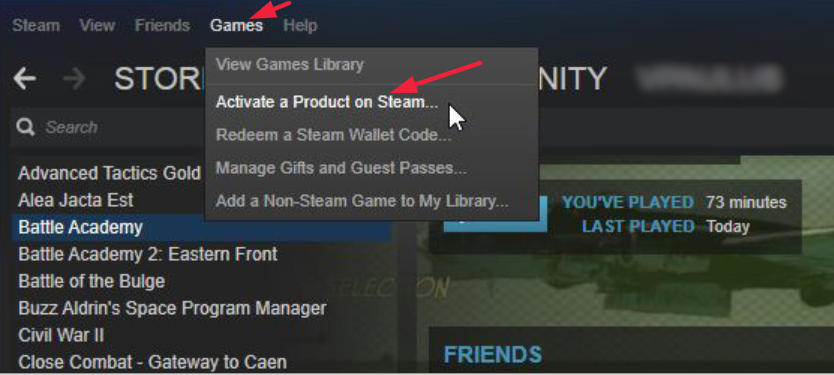
Click Next on the introductory screen, then tick I Agree to accept the Steam Subscriber Agreement.
Type or paste your product code into the Product Code Field (copy-paste is safer since keys are case-sensitive) in this way: XXXXX-XXXXX-XXXXX.
After entering the Steam key, click Next or Confirm. If the Steam key is valid, it displays the game or software linked with the code.
Click Finish, or choose to install the game right away.
Method 2: Via Steam Website
If you don’t like to redeem a Steam key via Steam Desktop Client, you can use its website. Follow this process:
Go to store.steampowered.com.
Sign in with your account, or create a new one.
Click your username in the top-right corner of the screen.
Select Redeem A Gift Card or Wallet Code from the dropdown.
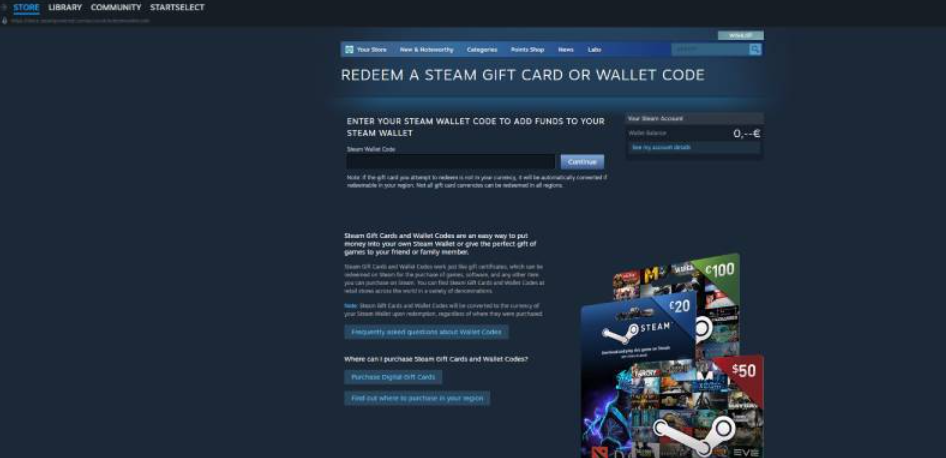
Enter your Steam code in the Product Code field.
Now, check the box to agree to the Subscriber Agreement.
Finally, click Continue, and your game appears in your library.
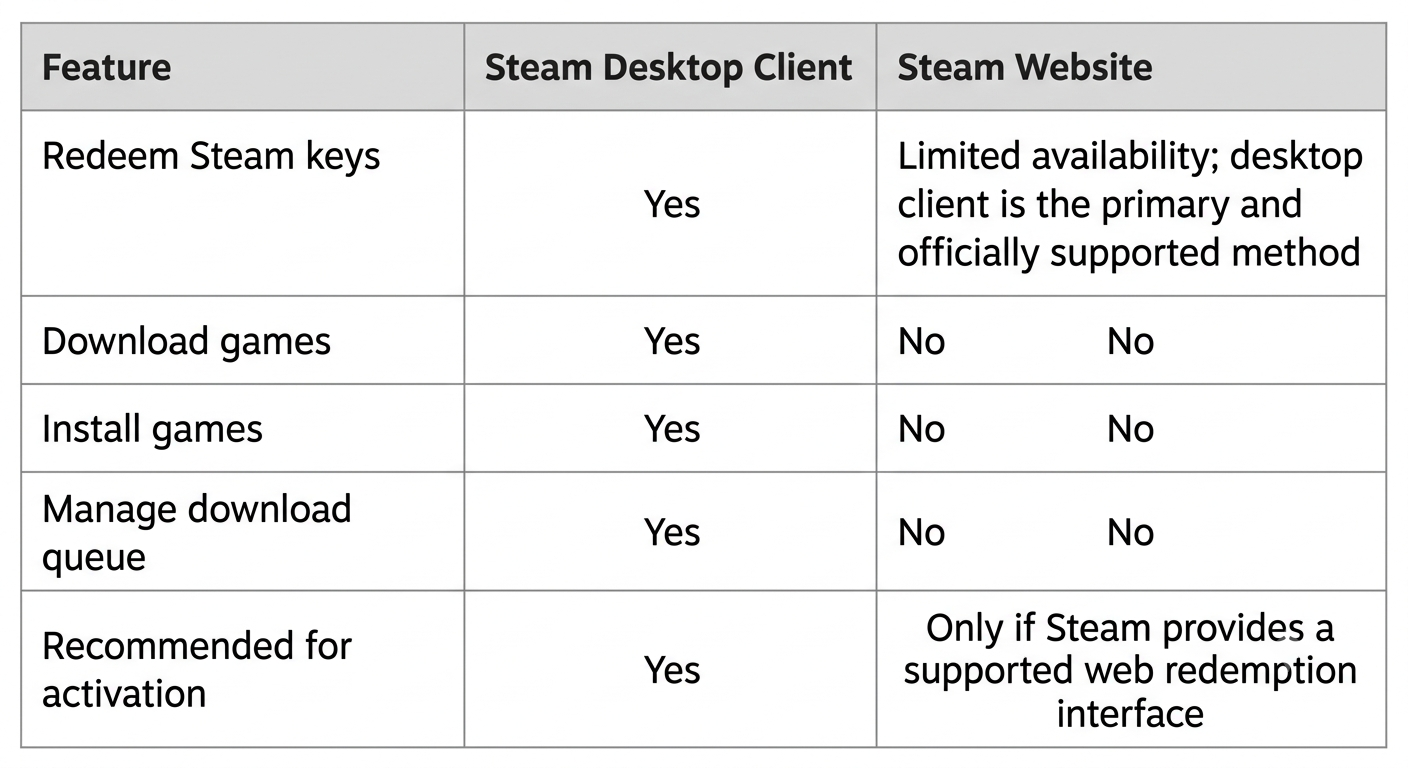
Steam Client vs. Steam Website: What are the Differences?
Common Steam Key Redemption Errors and How to Fix Them
Even if you have tried every step correctly, Steam may display an error during activation. The best way to fix them is to identify the error first, understand why it occurs, and then apply the appropriate solution. Have a look:
Duplicate Key Error: This error means the Steam key has already been redeemed. Double-check that you're signed into the correct Steam account. If you’re sure you never redeemed it, contact the seller with your proof of purchase.
Invalid Product Code: Steam can’t recognize your product code due to a typing mistake, a wrong platform key, or an incorrect key. Enter your Steam key carefully to resolve the issue.
Region Restriction: The region restriction happens when the publisher limited the key to specific countries or regions. Check your seller’s product listing. If your seller didn’t display the restriction before the purchase, contact the seller for assistance.
Product Already Used: It happens when the product or game has already been used. You might have activated the product key with another account or even worse. Check your Steam library immediately; if you didn’t activate the key, contact the seller with proof.
Steam Servers Busy: Steam couldn't complete activation right now due to a temporary server issue or maintenance. Wait a few minutes and try again.
Key Doesn’t Match Base Game: This means the key cannot be activated by itself. Some DLC needs the base game. Check if you have the required base game before redeeming the DLC.
Tips to Avoid Steam Key Activation Mistakes
If you follow these simple practices, it can help you avoid most activation problems. Check this out:
Redeem the Key on the Correct Steam Account
Before redeeming the key, confirm that you're signed into the correct account. Because Steam licenses are tied to a specific account, activating the key on the wrong account can be difficult to reverse.
Buy Steam Keys from Trusted Sellers
A legitimate seller always provides valid keys and responsive customer support if something goes wrong. Purchase Steam keys to avoid problems:
Official game publishers
Authorized retailers
Well-established digital game stores
Check Regional Compatibility Before Buying
If the product page mentions a region restriction, verify that your country is eligible for activation. Doing this before purchase is much easier than trying to resolve a regional activation issue afterward.
Verify the Platform
Not every digital game key works on Steam. Some retailers sell keys for other platforms, including:
Epic Games Store
Ubisoft Connect
EA App
Microsoft Store
GOG
Always confirm that the listing explicitly says Steam key. Learn the difference between CD keys vs Official stores, which gives better value for gamers.
Keep Your Purchase Confirmation
These documents are often required if you need assistance from the retailer.
Order confirmation
Email receipt
Invoice
Activation code
Copy and Paste the Key
Typing a long code manually increases the chance of mistakes. If possible, copy and paste the Steam key directly into the Product Code field.
Don't Share Unused Steam Keys
An unused Steam key functions like a one-time activation token. If someone else redeems it first, Steam will permanently assign the license to their account, leaving you unable to use the same key.
Contact Steam Support
If you face the following issues, contact Steam support for further help:
You can't access your Steam account.
Your Steam client isn't working correctly.
The game appears in your account but won't download or install.
You're experiencing issues with your Steam Library after successful activation.
You need help with account ownership or security.
Frequently Asked Questions
Q1: Can I redeem a Steam key more than once?
Ans: No. A standard Steam key can only be activated once. After it has been successfully redeemed, the license is permanently associated with the Steam account that activated it.
Q2: Can I move a redeemed Steam key to another account?
Ans: Once a Steam key has been activated, the license is linked to that Steam account and cannot be transferred to another account through the normal activation process.
Q3: Do Steam keys expire?
Ans: Many Steam keys do not have an expiration date, but publishers can choose different distribution policies for promotional or time-limited keys. If a retailer or publisher specifies an expiration period, follow that guidance.
Q4: Can I redeem a Steam key on Windows, macOS, and Linux?
Ans: Yes, you can redeem a Steam key using the same Steam account regardless of your operating system. However, whether you can play the game depends on the operating systems supported by that specific title.
Q5: What should I do if my Steam key says it's already in use?
Ans: First, make sure you're signed into the correct Steam account and check whether the game already appears in your Steam Library. If you've never redeemed the key and purchased it from a retailer, contact the seller with your proof of purchase, as they are typically responsible for investigating already-used keys.
Final Thoughts
Redeeming a Steam key in 2026 is a simple process once you understand how Steam's licensing system works. Whether you're activating a game purchased directly from a publisher or from an authorized retailer, following the steps in this guide will help you avoid common mistakes and get your game ready to play with confidence. Bookmark Cdkeycompares to get the latest gaming news, software, or gaming platform buying guides in a single place.